
How to Retrieve Your Windows 11 Product Key: Command‑Line, and Microsoft Account Methods
Windows 11 can be activated in two ways: by entering a 25‑character product key, or by using a digital license that activates the system automatically. Depending on how you obtained Windows 11, you may need to locate either the product key stored in your device’s firmware or the digital license linked to your Microsoft account. This guide explains the simple and supported methods to retrieve windows 11 product key.
If you’re planning to reinstall Windows 11, upgrade your computer, or simply keep a backup of your activation details, knowing how to retrieve your Windows 11 product key can be helpful. However, finding that 25-character key isn’t always straightforward, especially if your PC came with Windows preinstalled or was activated using a digital license.
Fortunately, Windows offers a few built-in ways to check for a stored product key without installing third-party software. In this guide, we’ll walk you through practical methods using Command Prompt, PowerShell, and Windows activation settings. We’ll also explain how a digital license linked to your Microsoft account works, when you actually need a product key, and what to do if Windows doesn’t display one.
Activation Options in Windows 11
- Product key – A 25‑character string that you can type during activation.
- Digital license – An activation method that does not require you to enter a product key.
Both methods are valid for activating Windows 11.
Fix Common Windows 11 Issues: A DIY Guide for Tech Enthusiasts
When a Digital License Is Used
Purchased through the Microsoft Store app
- If you bought Windows 11 (or an upgrade) from the Microsoft Store app, Microsoft provides a digital license instead of a product key. The license is tied to the Microsoft account you used for the purchase.
Free upgrades from earlier Windows versions
- Upgrading for free from Windows 10, Windows 7, or Windows 8.1 to Windows 11 also results in a digital license rather than a product key.
Retrieving an OEM Product Key from Firmware
Some devices have the original Windows product key stored in the firmware (UEFI/BIOS). You can display that key with a built‑in command‑line tool:
- Open Command Prompt with administrative privileges.
- Enter the following command and press Enter:
wmic path softwarelicensingservice get OA3xOriginalProductKey
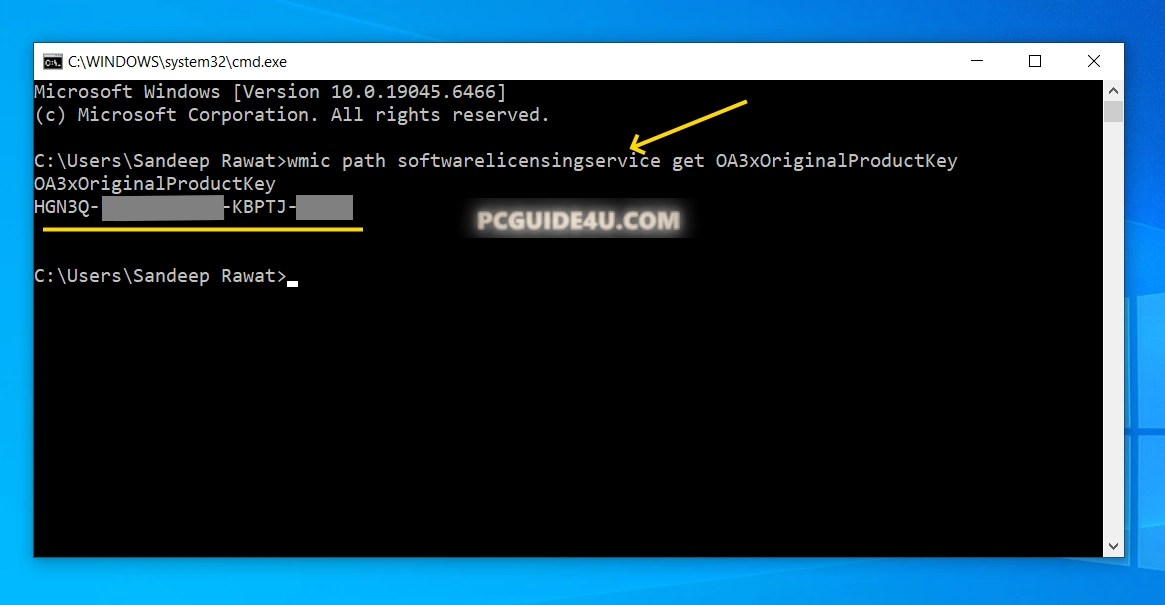
If the device’s firmware contains an OEM key, the command will output the 25‑character product key.
Locating Your Digital License via Your Microsoft Account
A digital license can be found in your online Microsoft account:
- Sign in to account.microsoft.com with the Microsoft account that was used for the purchase or upgrade.
- Navigate to Order History.
- Look for the transaction labeled Windows 11.
The details of that transaction represent the digital license associated with your Windows 11 installation.

Windows 11 activation may rely on a traditional product key or a digital license.
Use the command‑line method to reveal an OEM key stored in firmware, and check your Microsoft account’s Order History to confirm a digital license linked to a purchase or free upgrade. With these built‑in tools, you can locate the exact activation information your system requires.
Locate Your Windows 11 Product Key with Easy Steps Share on X


