
How to Troubleshoot the “No Internet, Secured” Wi‑Fi Error in Windows 11?
Windows 11 may show a Wi‑Fi connection as “No Internet, Secured.” The following guide walks through the checks and actions that are known to address this condition.

Start with the Built‑in Network Troubleshooter
- Open Settings → System → Troubleshoot → Other troubleshooters.
- Select Network Adapter
- Run the troubleshooter.
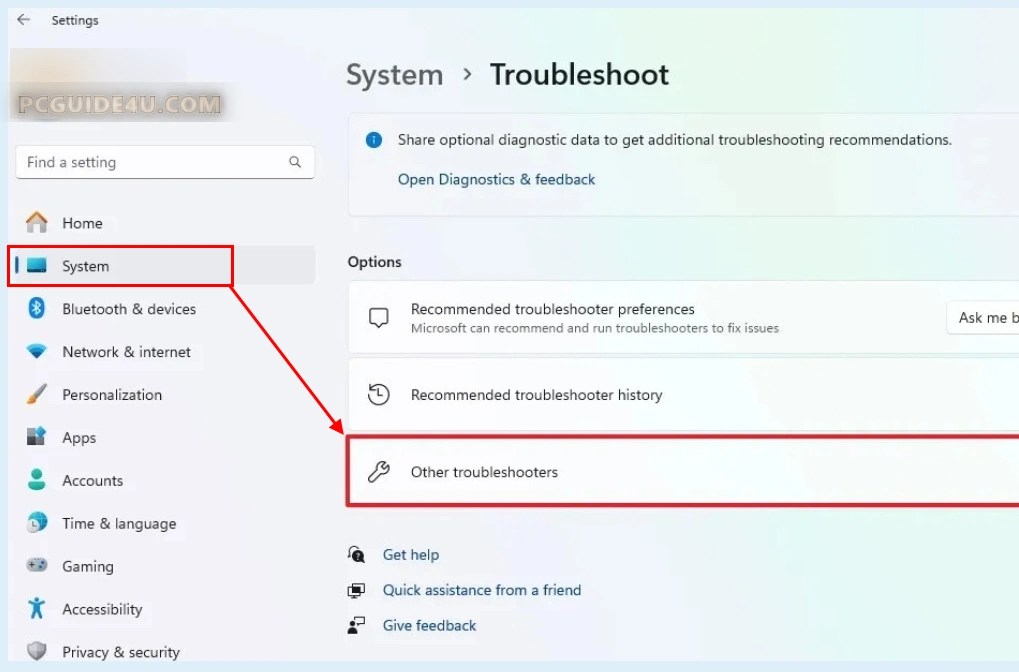
Running this built‑in tool is a standard first step for this error to fix.
Verify Device Manager for Problematic Hardware
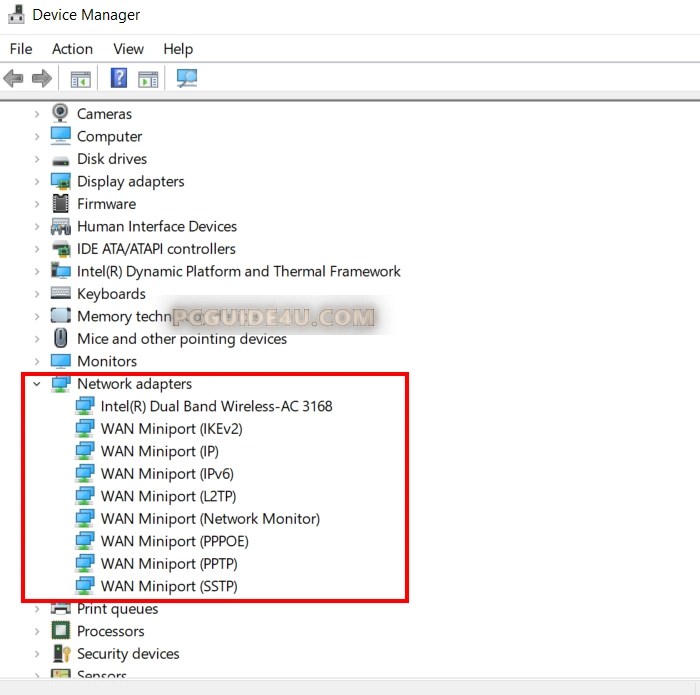
- Open Device Manager.
- Look at Network adapters (and Display adapters) for any yellow warning icons.
A warning icon can point to a device that needs further attention.
Reset the Network Stack
- Open Settings → Network & Internet → Status.
- Click Network reset.
- After the reset finishes, restart the PC.
A network reset is recommended before moving on to more specific fixes.
Reinstall the Wi‑Fi Adapter Driver
If the adapter is an Intel Wi‑Fi 6 AX200 (or another suspected driver issue):
- Open Device Manager, right‑click the Intel Wi‑Fi 6 AX200 adapter, and choose Uninstall device.
- Restart the computer.
- Download and install the latest driver from Intel (or the device manufacturer).
Reinstalling the driver can resolve driver corruption.
For other adapters, reinstalling the network adapter driver (uninstall then reinstall) is also recommended when driver problems are suspected.
Configure the WLAN AutoConfig Service
- Open Windows 11 Services. (Run command: services.msc)
- Locate WLAN AutoConfig.
- Set the Startup type to Automatic.
- Restart the computer (or restart the service).
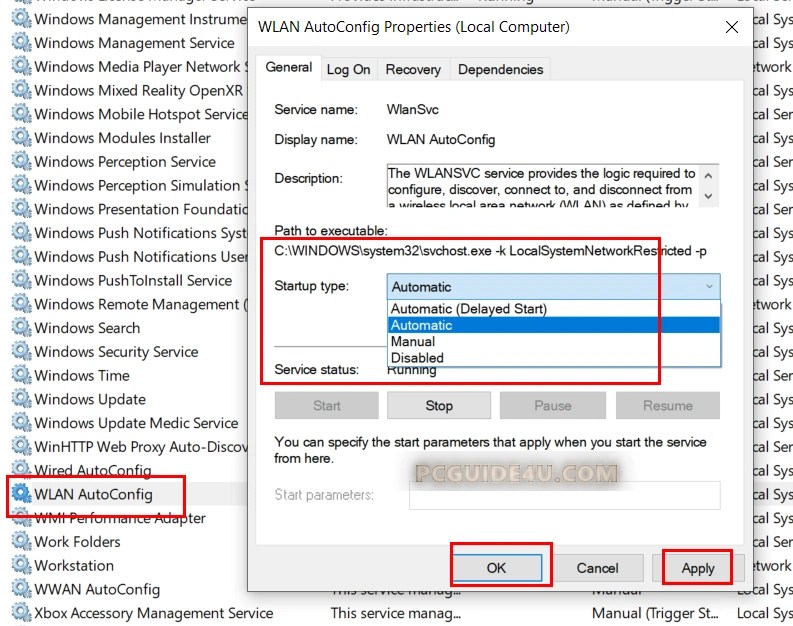
Setting this service to Automatic and restarting helps re‑initialize Wi‑Fi functionality.
Reset the Wi‑Fi Adapter
a. Disable / Enable via Control Panel
- Open Control Panel → Network and Sharing Center → Change adapter settings.
- Right‑click the Wi‑Fi adapter, choose Disable, then Enable.
Disabling and then re‑enabling the adapter can reset it.
b. Forget and Re‑connect to the Network
- Open Settings → Network & internet → Wi‑Fi → Manage known networks.
- Select the network and click Forget.
- Re‑connect to the Wi‑Fi and enter the password again.
Forgetting the network clears cached data.
Refresh IP Configuration and DNS Cache
Open Command Prompt (run as administrator) and execute:
ipconfig /release
ipconfig /renew
ipconfig /flushdns
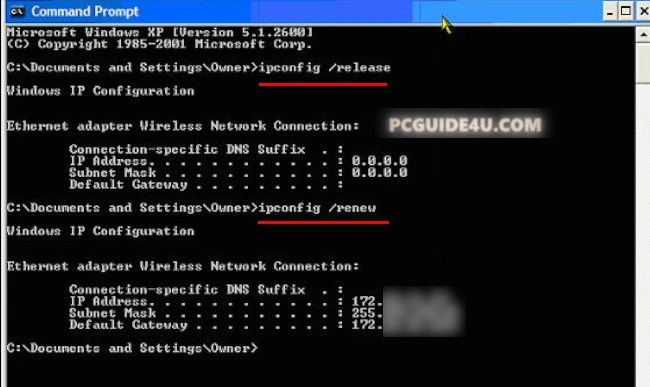
These commands reset the IP lease and clear the DNS cache.
Power‑cycle the Modem/Router
- Turn off the modem/router.
- Wait 30 seconds or longer.
- Turn it back on.
Power‑cycling can resolve communication glitches between the PC and the router.
Disable Windows Startup Items
- Open System Configuration (Run command: msconfig).
- Go to the Startup tab and disable all items.
- Restart the PC.
Disabling startup items can be part of the troubleshooting process.
12. Examine VPN and Proxy Configurations
- VPN – Remove VPN profiles and uninstall VPN applications if they might be interfering with connectivity.
- Proxy – Check and adjust proxy settings as part of the troubleshooting flow.
Both VPN and proxy configurations can affect network access.
The steps above address common factors such as driver issues, service settings, and network‑stack glitches. Following them may resolve the “No Internet, Secured” condition and restore Internet connectivity.
Troubleshoot the “No Internet, Secured” Wi‑Fi Error Share on X


