

How to Troubleshoot Windows 11 Automatic Time‑Sync Problems?
Windows 11 time sync troubleshooting can help when your computer displays the wrong date or time, even with automatic time settings enabled. If your PC clock keeps changing, fails to synchronize, or shows an incorrect time after restarting, this guide walks you through practical steps to identify the problem and get your Windows 11 clock syncing correctly again.
Why Is Windows 11 Not Syncing Time Correctly?
Windows 11 relies on a background component called Windows Time (w32time) to keep the system clock aligned with Internet time servers. When the clock stops updating automatically, the issue may involve the service, its configuration, or the hardware clock that provides the initial time. The following guide walks through the built‑in tools and settings that can be used to diagnose and repair common synchronization failures.
What Controls Time Synchronization?
- Windows Time service (w32time) – This service runs in the background and performs all time‑sync operations for Windows.
- NTP server configuration – The service contacts an NTP (Network Time Protocol) server that you can specify either through the Settings UI or via command‑line configuration.
- Registry and policy settings – Values under
HKLM\SYSTEM\CurrentControlSet\Services\W32Time\...(e.g., theEnabledflag for the NtpServer provider or theTypeDWORD underParameters) determine whether the service works in client mode, symmetric‑active mode, or other behaviors. - Hardware clock – A failing CMOS battery or drift in the BIOS clock can make the Windows clock inaccurate, which in turn affects synchronization.
Before moving on to advanced Windows 11 time sync troubleshooting, check that your time zone is correct and that the automatic time settings are configured properly.
Quick Fixes That Often Resolve Time Sync Errors
a) Restart the Windows Time service
- Open the Services console (
services.msc). - Locate Windows Time (display name w32time).
- Choose Restart.
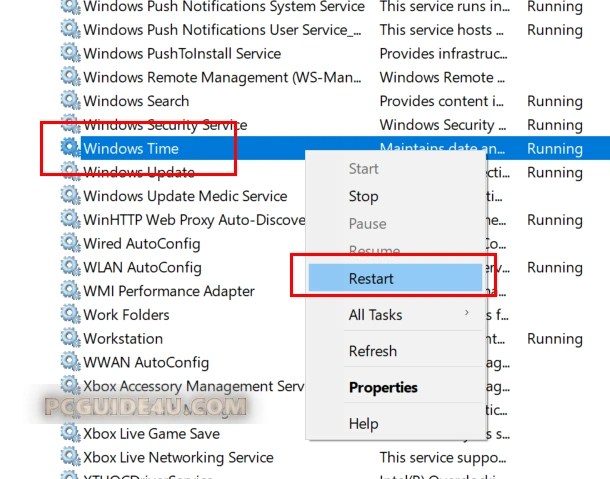
Restarting the service can clear transient problems and re‑establish communication with the NTP server.
b) Toggle automatic time settings
- Turn Set time automatically off, wait a moment, then turn it back on.
- Do the same for Set time zone automatically.
Toggling these options off and on again often fixes sync errors.
Re‑Register and Restart the Service
If a simple restart does not help, the service can be re‑registered with the following command sequence (run each line in an elevated Command Prompt):
net stop w32time
w32tm /unregister
w32tm /register
net start w32time

This process removes the existing service registration, registers it anew, and starts it again.
Troubleshoot Windows 11 Time Server Connection Issues
a) Using the command line
Replace <server> with the desired NTP address:
w32tm /config /manualpeerlist:<server>,0x8 /syncfromflags:MANUAL /update
w32tm /resync
The first command tells Windows Time to use the specified server in manual mode; the second forces an immediate resynchronization.
b) Using the Settings UI
- Open Settings → Time & language → Date & time.
- Click Additional settings → Sync Now → Change the time server.
- In the Server field, type the new NTP server name.
- Click Update now.
Each method changes the NTP server used by the Windows Time service.
Check Which Mode the Service Is Using
The registry key
HKEY_LOCAL_MACHINE\SYSTEM\CurrentControlSet\Services\W32Time\TimeProviders\NtpServercontains an Enabled value:
Enabled = 1→ symmetric‑active modeEnabled = 0→ client mode
Some NTP servers only respond to client‑mode requests; using symmetric‑active mode can therefore cause synchronization failures.
Advanced Configuration via Policy or Registry
Group Policy or direct registry edits (e.g., the Type DWORD under ...\\W32Time\\Parameters) can be used to enable, disable, or modify time‑sync behavior.
Adjusting these values can enable, disable, or modify time‑sync behavior.
Hardware‑Related Causes
A depleted CMOS battery or drift in the BIOS clock may produce an inaccurate system clock. When the hardware clock is off, Windows may struggle to align with Internet time sources.
8. Diagnostic Tools
- Query status and source
  w32tm /query /status
  w32tm /query /source
These commands display the current synchronization status and the server being used.
- Event Viewer
Look under the System log for entries related to time synchronization. Such events provide additional clues about why sync may be failing.
Windows 11’s automatic time synchronization hinges on the Windows Time service, its NTP configuration, and the underlying hardware clock.
By restarting the service, toggling automatic settings, re‑registering the service, specifying a different NTP server, confirming the correct operating mode, and checking diagnostic logs, these steps can help identify and resolve sync problems. If hardware clock drift is suspected, consider checking the CMOS battery or BIOS clock as a final step.
Quick Fixes That Often Resolve Windows 11 Time Sync Problems Share on X
